Step 1
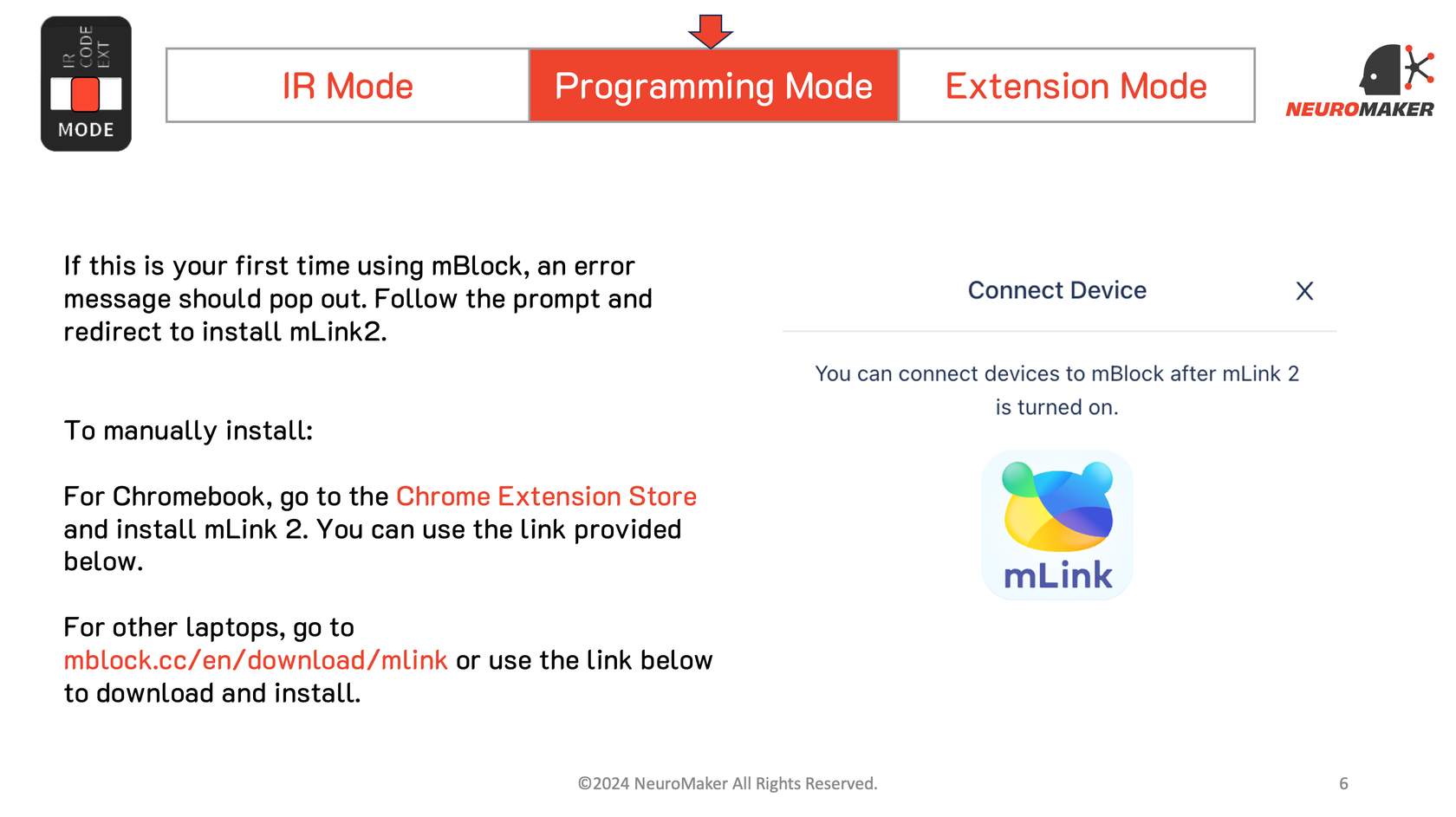
Install and open mLink 2 for Windows


NeuroHand 2.0 classroom guide
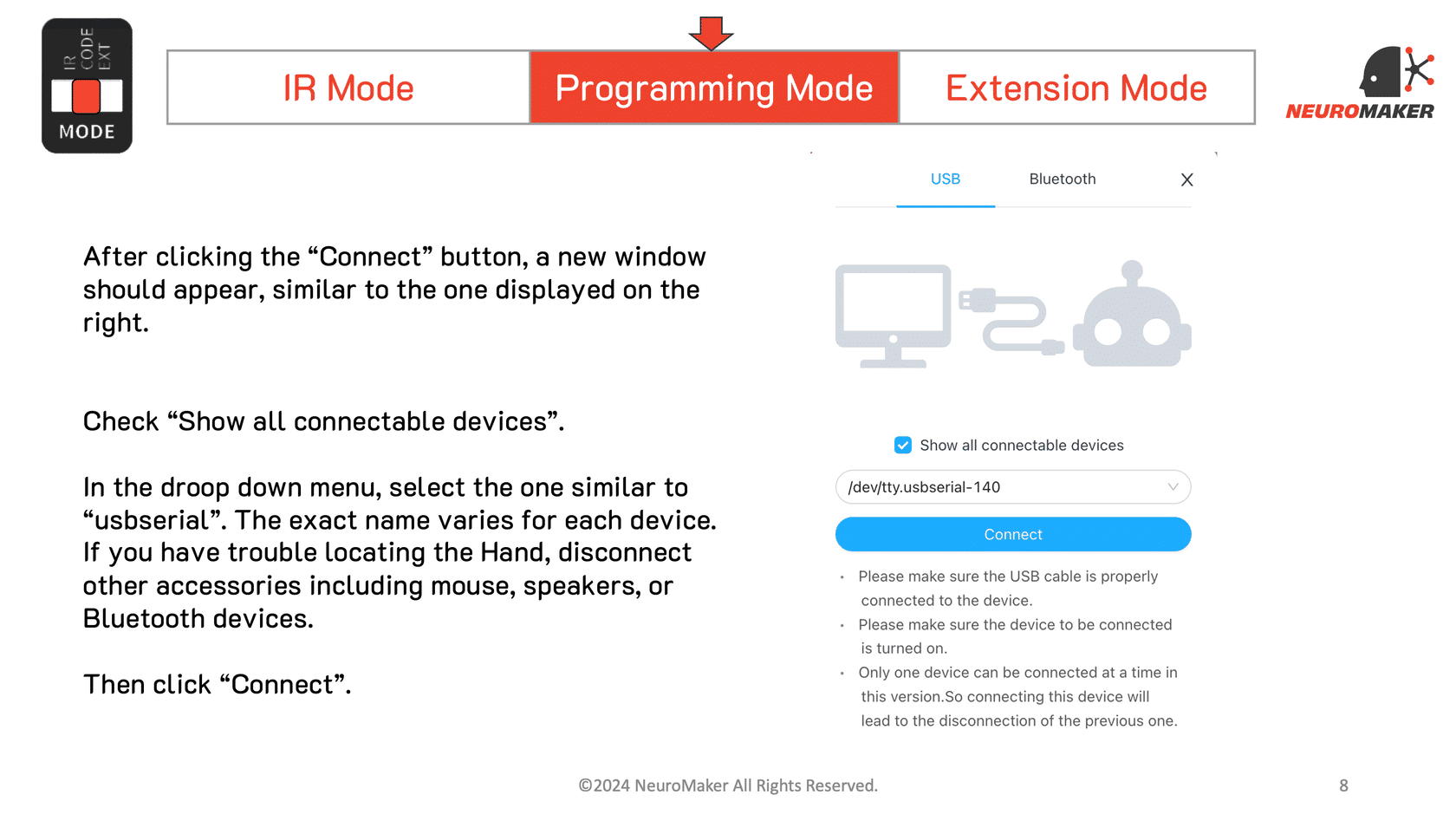
Follow these steps in order. You’ll install mLink 2, clean up the default mBlock project, add the correct Arduino Uno hand, and select its USB port.
Before you start
Step 1

Step 2

Step 3

Step 4

Step 5
Step 6

Step 7

Step 8

Step 9

Step 10
Connection complete
Keep mLink 2 open while you work. Try a simple finger-movement block first, and keep fingers, cables, and loose objects clear of moving joints.
Quick fixes
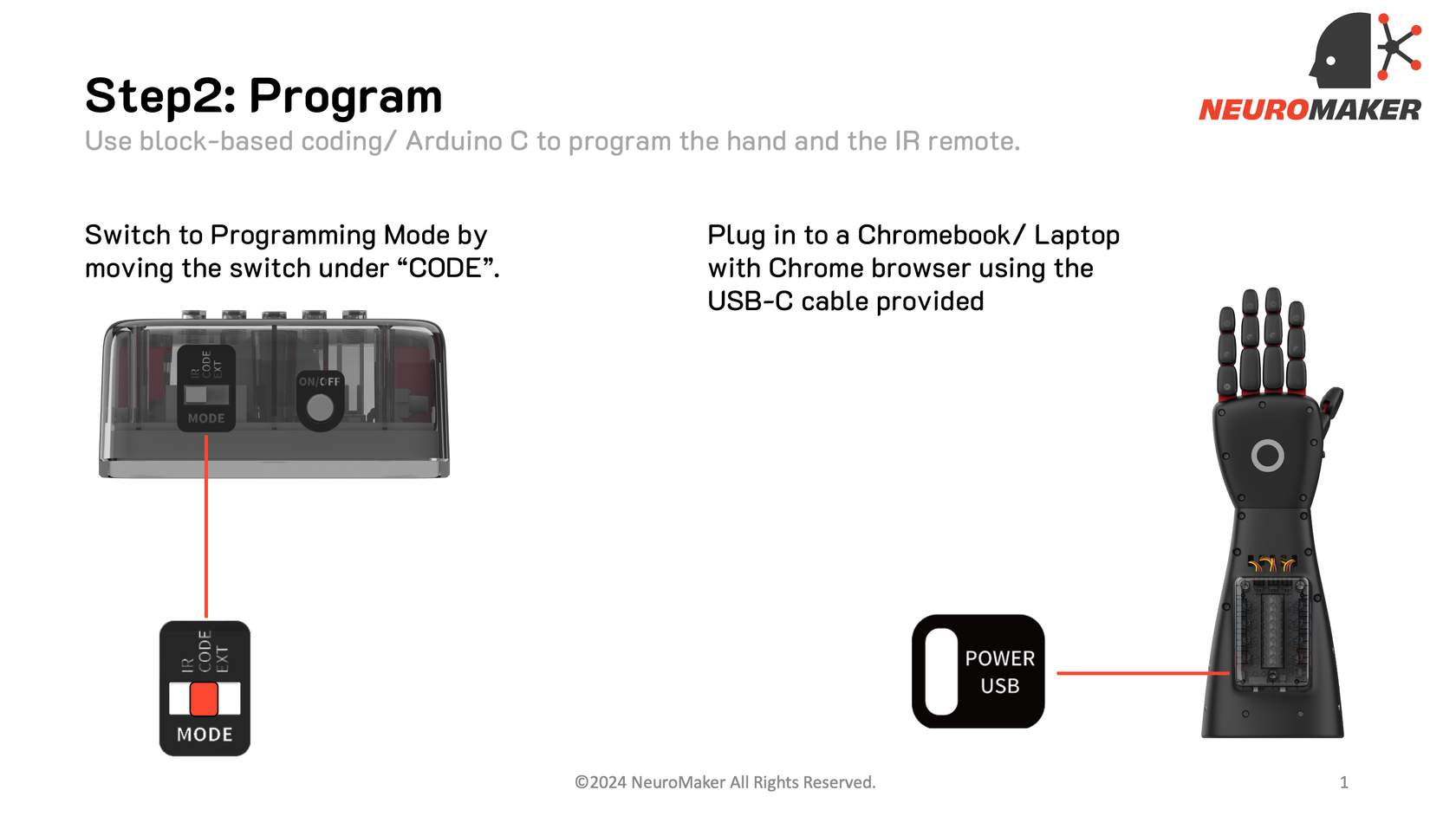
Use a data-capable cable, try another USB port, confirm CODE mode, then unplug and reconnect the hand.
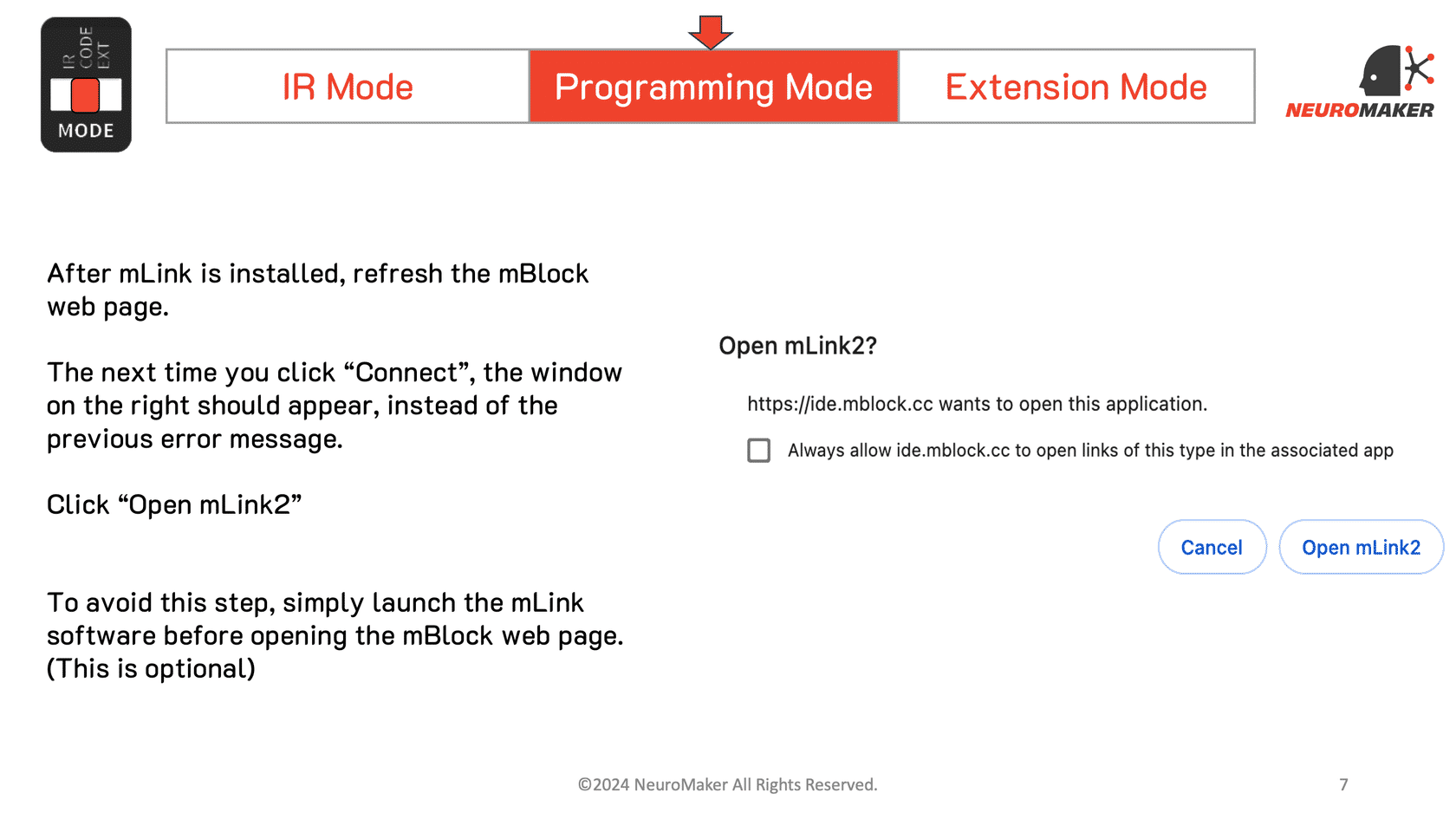
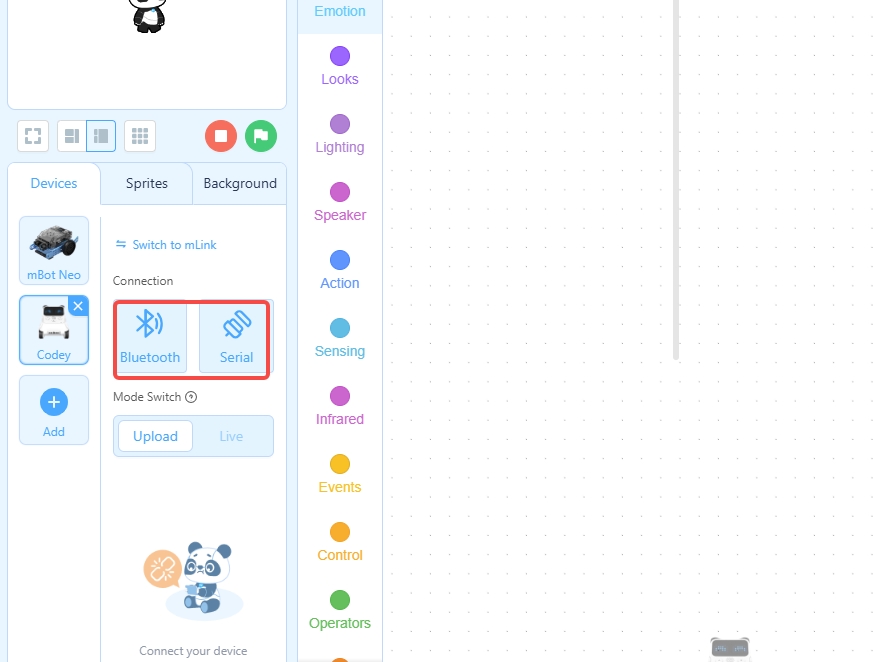
Open mLink 2 first, fully quit Chrome, reopen Chrome, reload ide.mblock.cc, and click Switch to mLink.
Look for the CH340 entry in Device Manager. COM4 is common, but it is not guaranteed.
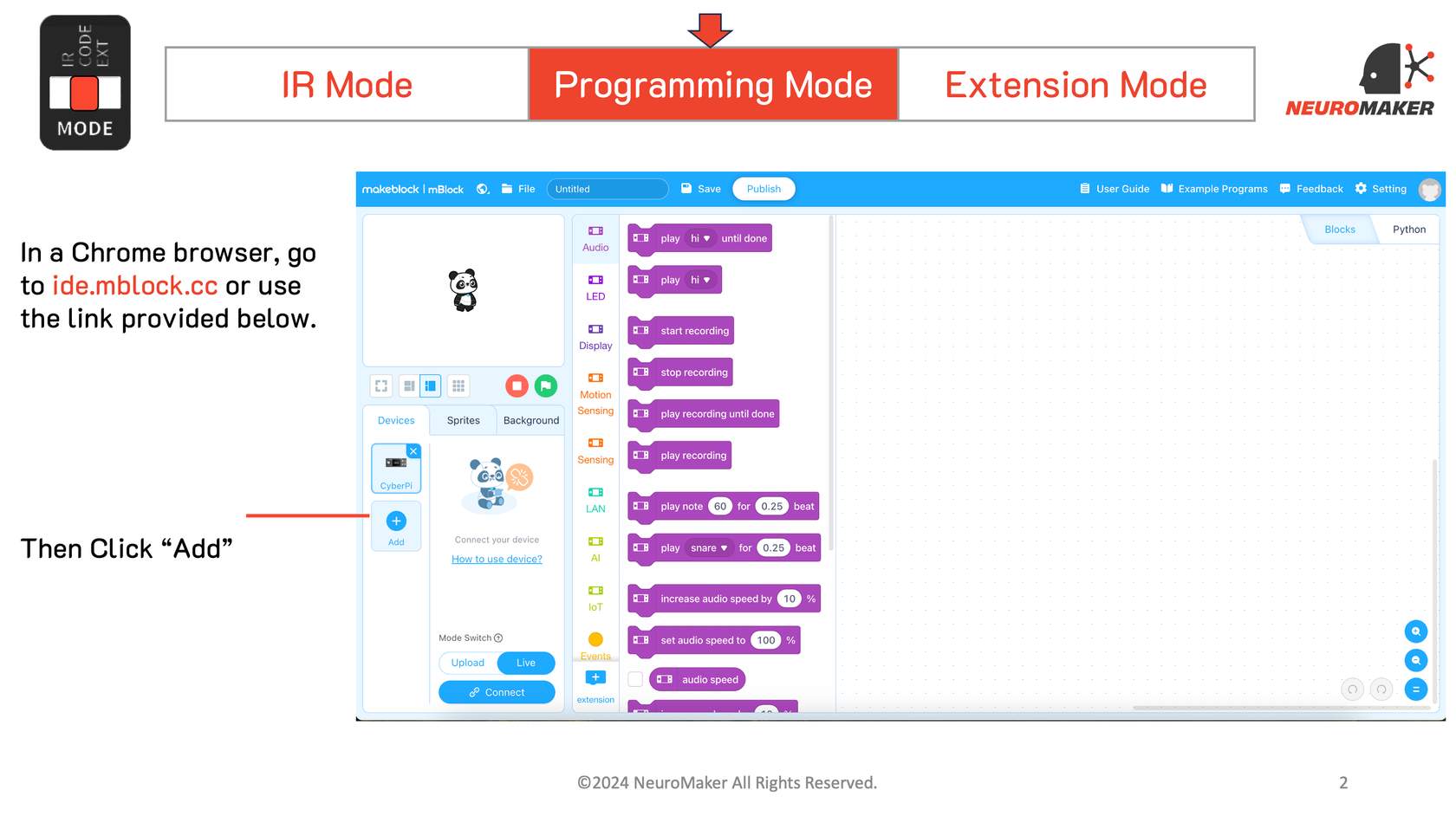
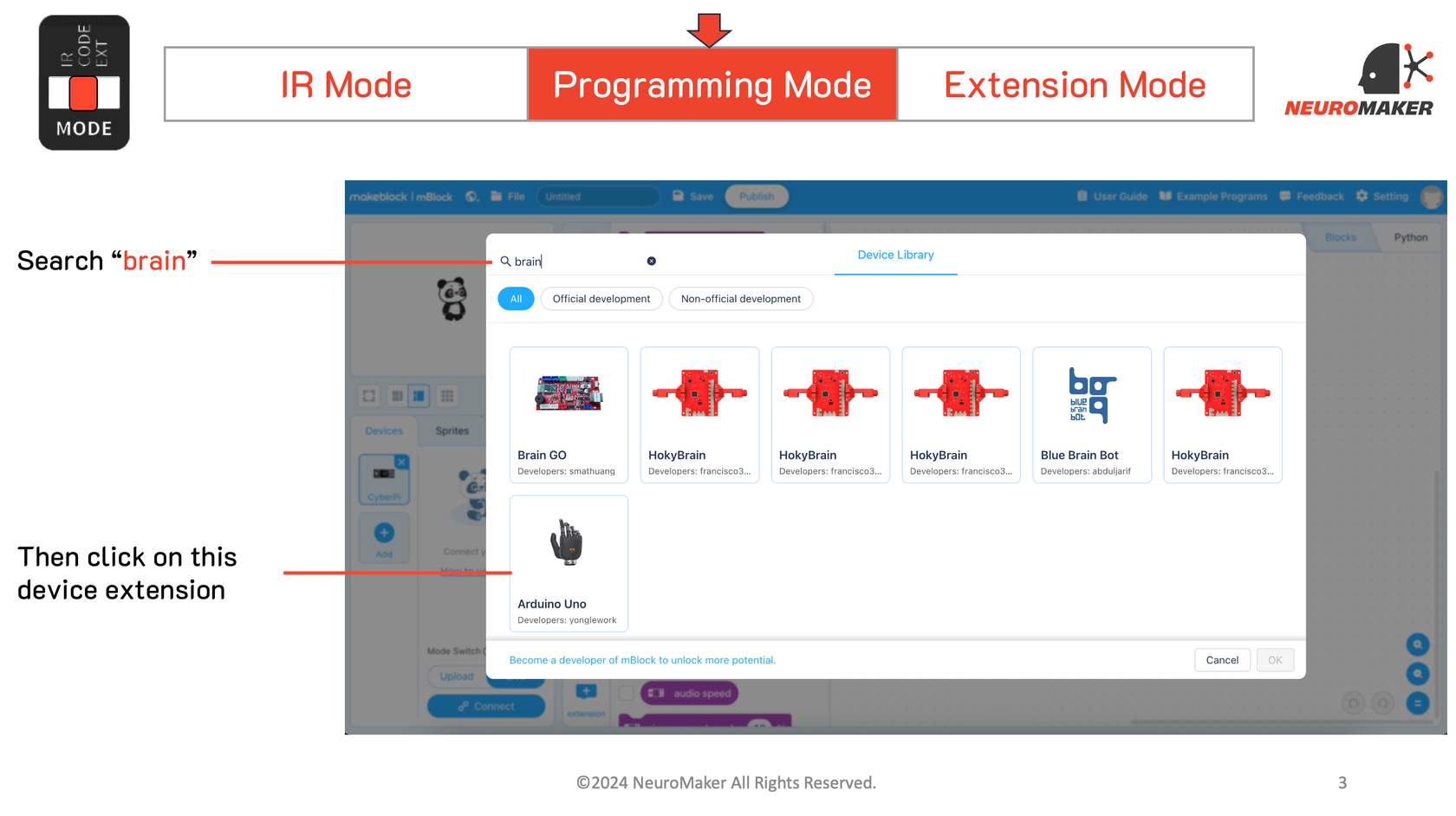
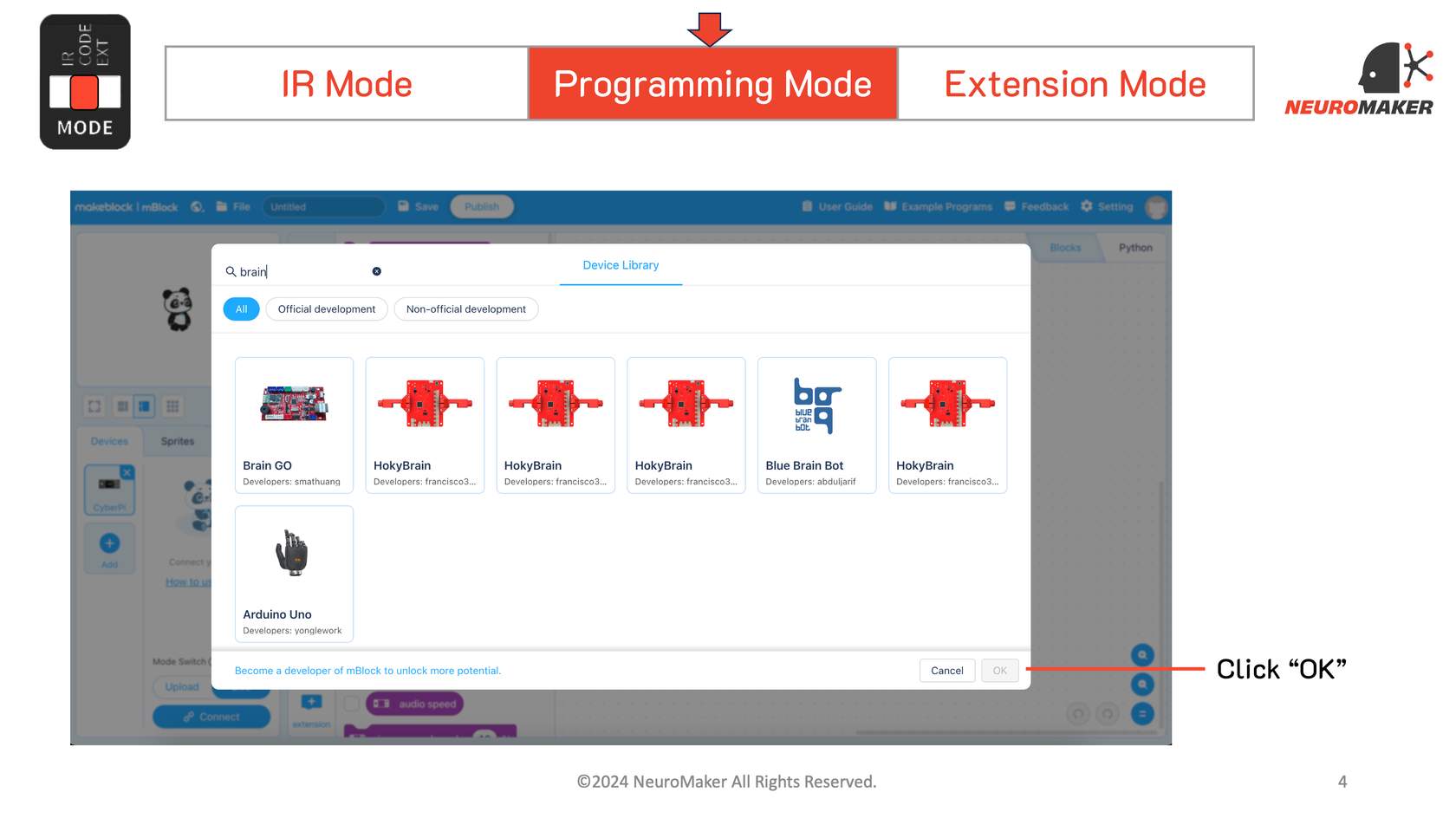
Add the hand-shaped Arduino Uno first. Then use the lower extension + and search NeuroMaker Hand; if needed, search v3ext.
On a school-managed device, ask IT to allow mLink 2 and ide.mblock.cc. Do not disable antivirus or the firewall for the whole computer.
Official references
Screenshots are attributed to their official publishers and are shown for classroom reference. Labels were checked against the current mBlock web editor in July 2026.